This guide covers the standard K5 floor-standing configuration shown in the illustrated installation manual. If your supplied parts or kiosk configuration differ, contact INFI Support before proceeding.
Installation resources
Before you start
Keep the power disconnected. Prepare a Phillips screwdriver, a flat and stable work area, and a padded surface for the host.
Check the host and column, floor-standing base, accessory box and power cable against the package list in the PDF. The floor-standing guide identifies four M6 × 11 mm foot-pad screws and four M6 × 30 mm column screws. Keep the four silver cross-head screws removed from the host for reassembly. Match all hardware to the kit supplied with your unit.
1. Detach the host
The illustrated guide shows the host arriving attached to the column. Remove the two side covers, remove the two cross-head screws behind each cover (four in total), and lift the host away from the column. Place it on the padded surface and keep the four silver screws.
2. Prepare the stand and base
Turn the column upside down on a stable surface, or lay it flat with the bottom accessible. The side with the ports is the rear of the kiosk. Fit the four foot pads at the corners on the underside of the base plate, using the foot-pad hardware shown in the PDF.
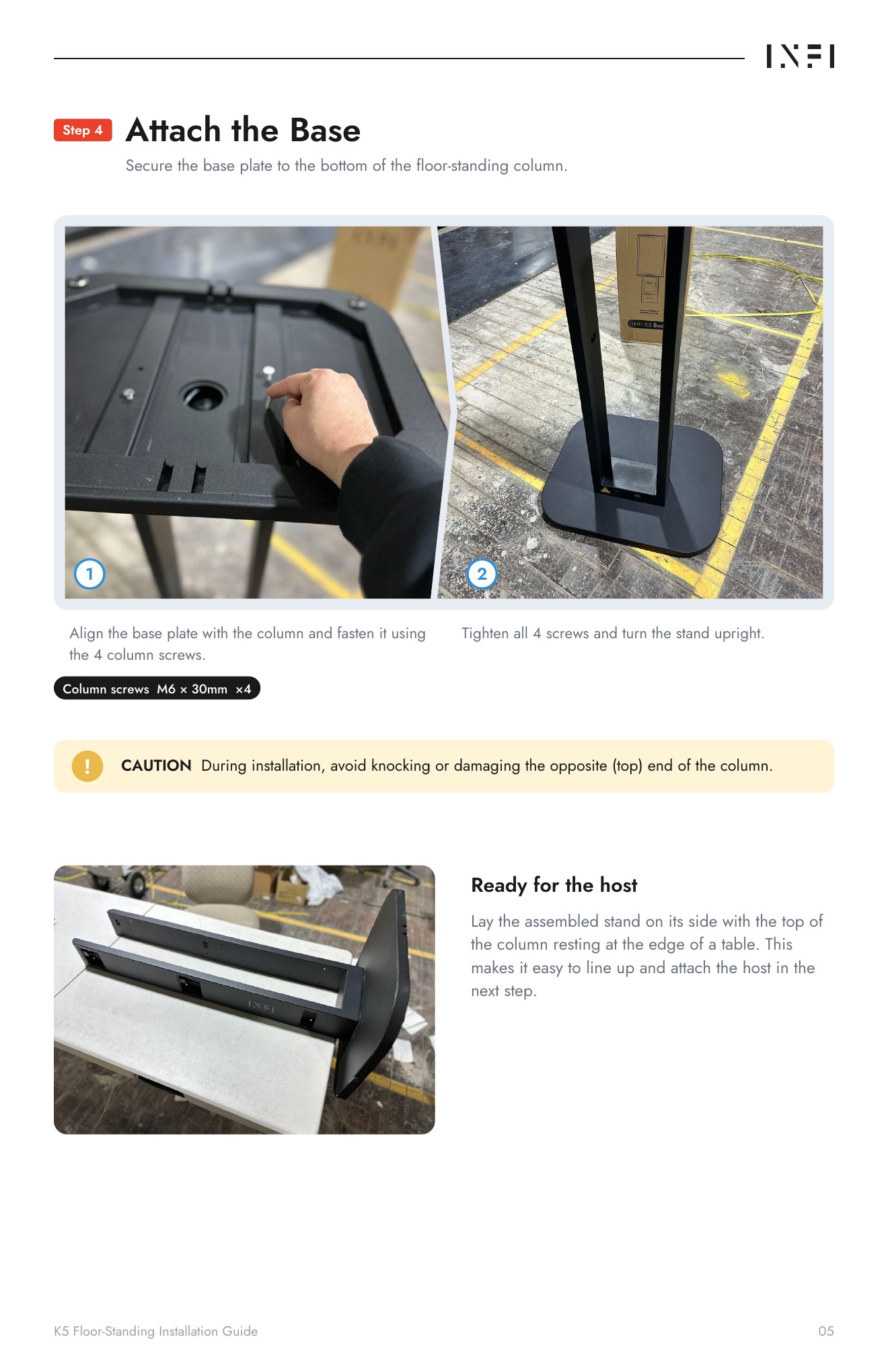
3. Attach the base
Align the base plate with the bottom of the column and install the four column screws. Tighten all four. Protect the top end of the column while turning or positioning the stand. Position the assembled stand as shown in the illustrated guide so the top of the column is accessible for attaching the host.
4. Mount the host
Remove the two covers at the bottom of the host. Fit the host onto the top of the stand and reinstall the four saved silver cross-head screws, two per side. Tighten all four, then stand the assembled kiosk upright.
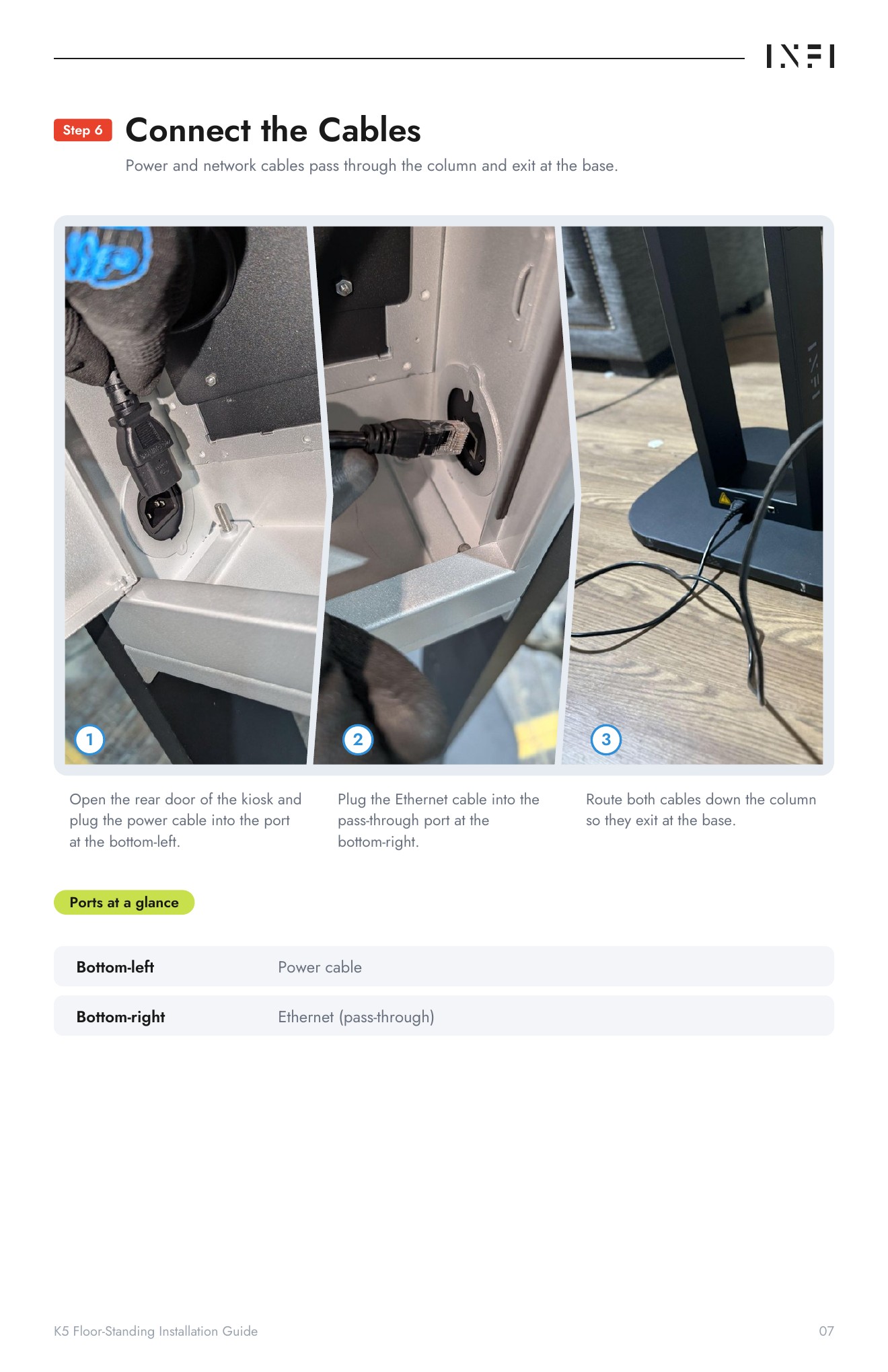
5. Connect and route the cables
Open the rear door. In the configuration shown in the guide, the power cable connects at the bottom-left port and the Ethernet cable uses the bottom-right pass-through port. Route both cables down the column so they exit at the base. Use the illustration below to identify the connection points.
6. Check the assembly and power on
- Check that the screws are fully tightened.
- Confirm that the stand and host are stable, with no wobble.
- Check cable clearance, then connect the supplied power cable and adapter.
- Perform a power-on check and confirm normal operation on the actual screen.
If a payment device is included, use the installation instructions for that exact device and mounting kit. For Clover Flex Pocket, see the K5 Clover Flex Pocket installation video.
Need help?
Contact support@infi.us. Include your store name, kiosk model, a photo of the installation or error message, and a short description of the step you need help with.